



Prepare
Have access to the phone number or email connected to the member account.
ATAS3 / All Tutorials
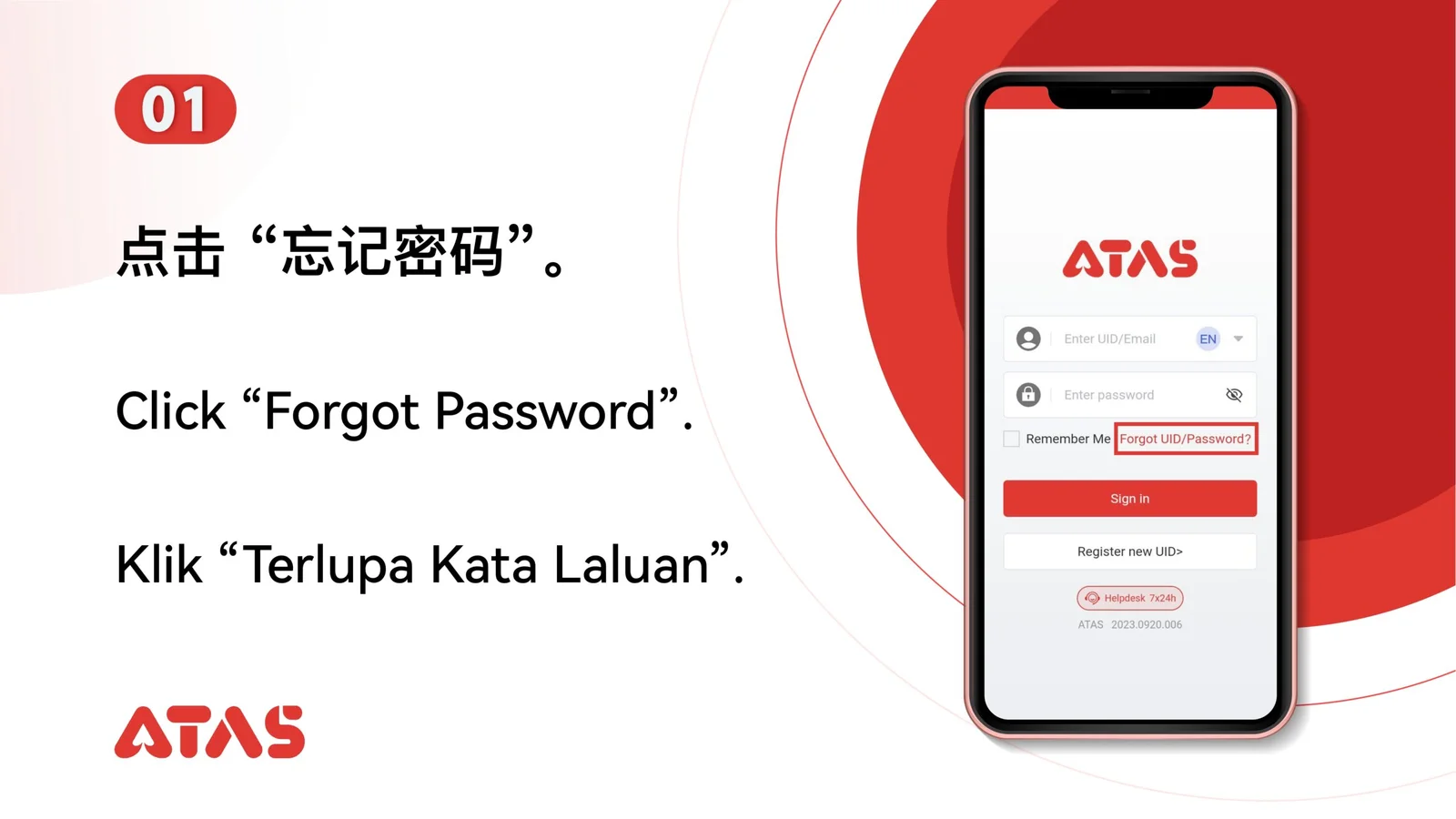
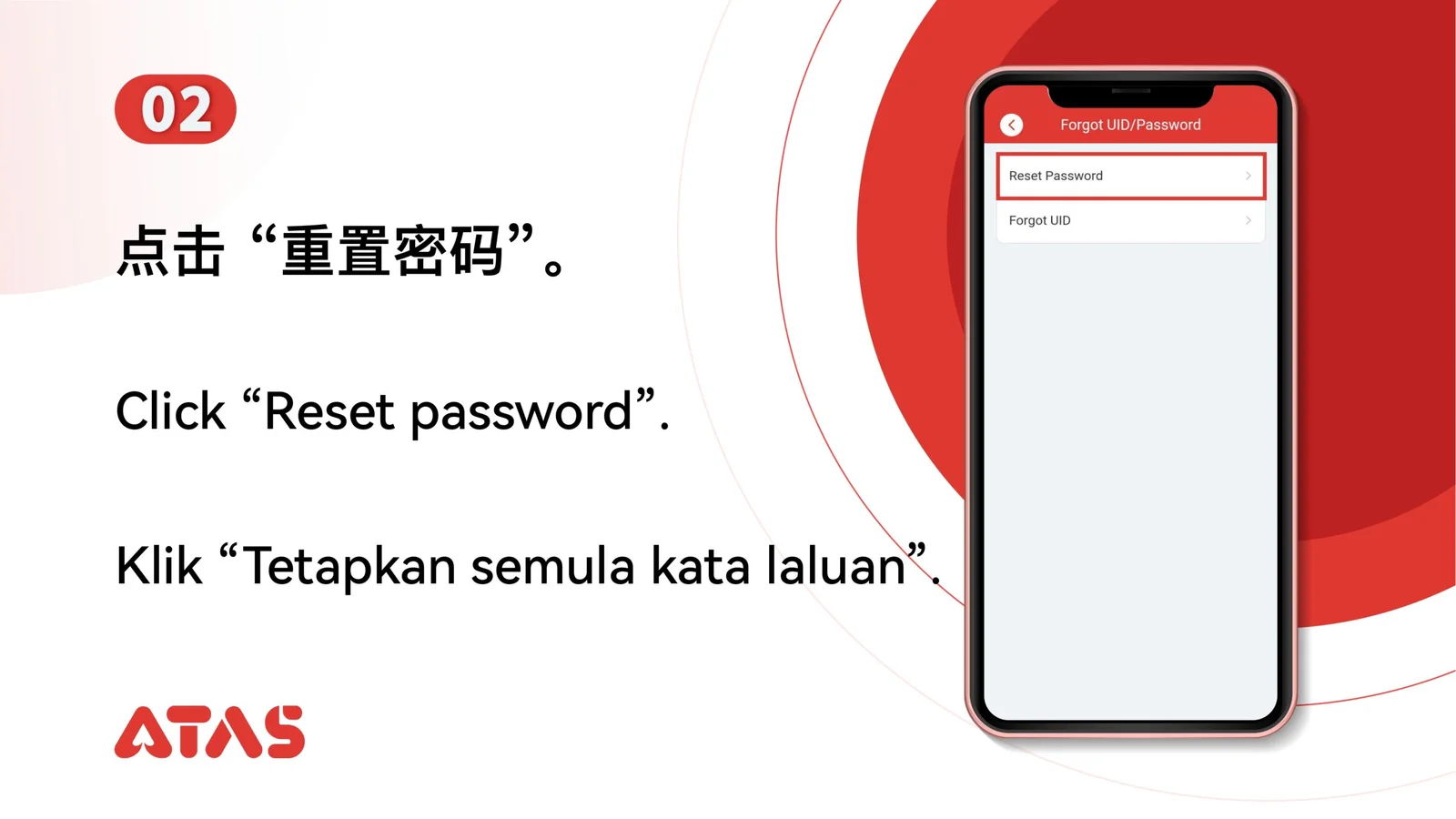
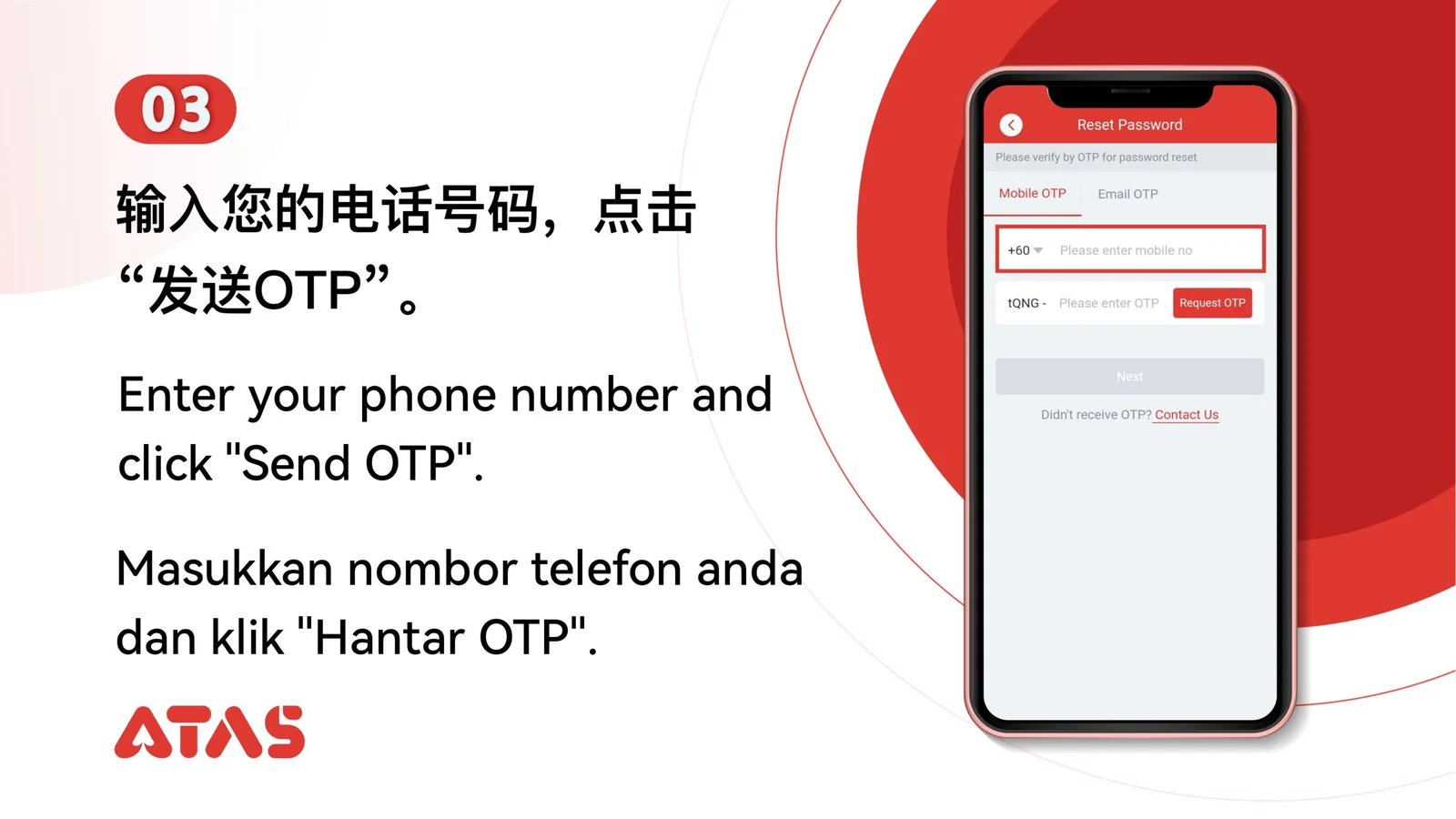
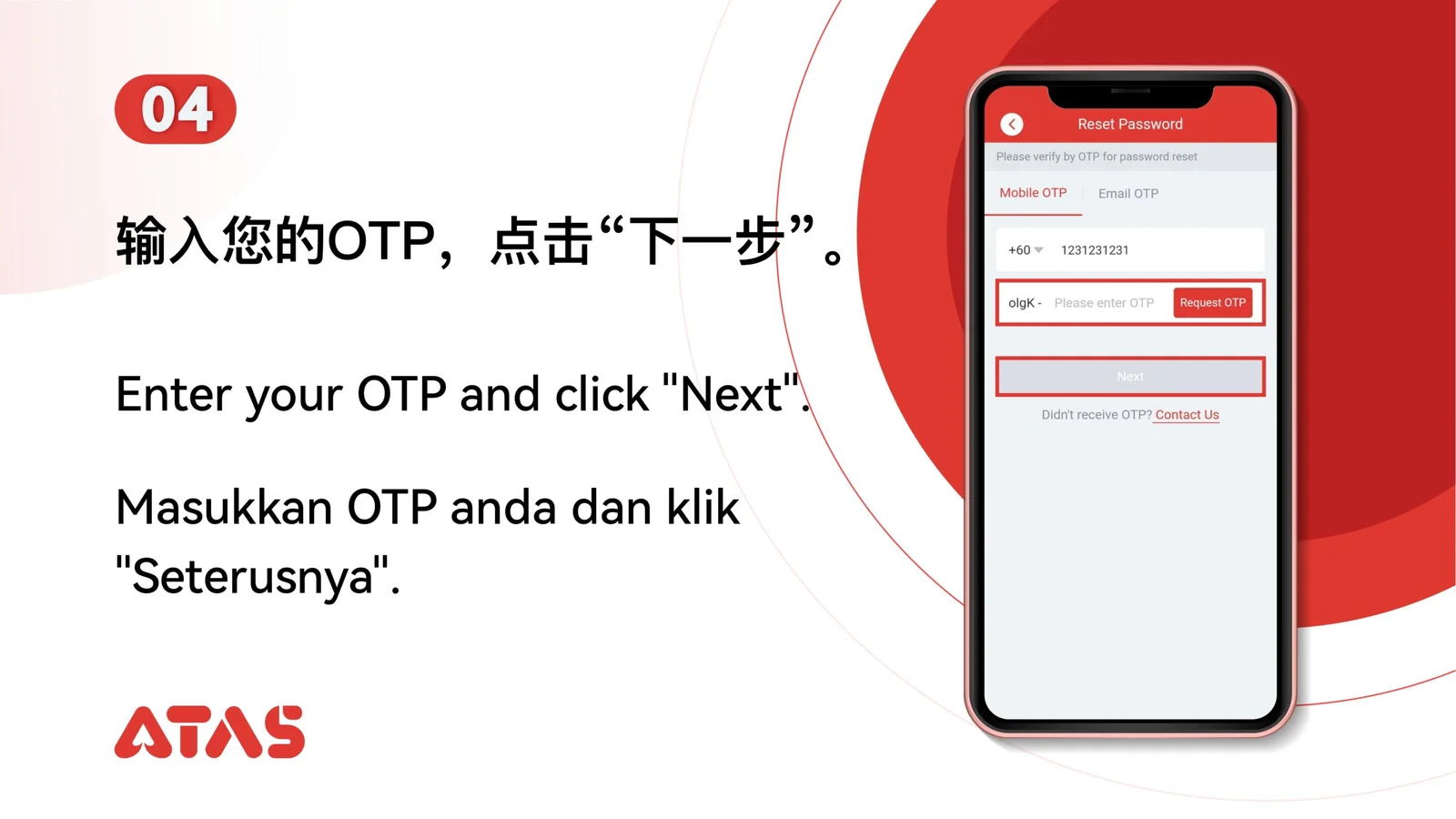
Complete Reset Forgotten Password in 8 illustrated steps, with task-specific preparation, confirmation checks and a clear completion signal.
ILLUSTRATED ATAS3 GUIDE
The screenshots show the order. These checkpoints explain what must match along the way. 8 illustrated steps
Follow the sequence
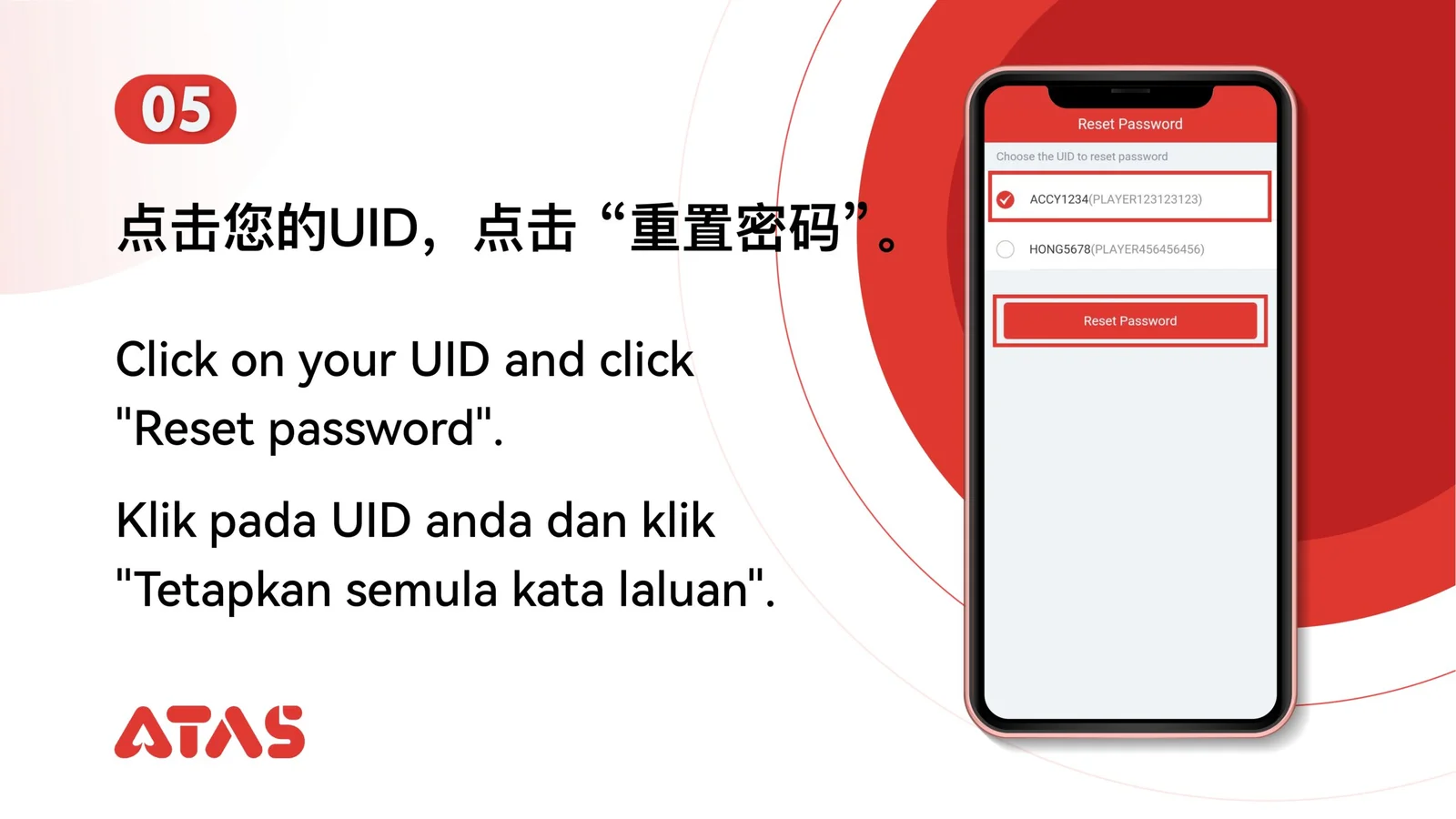
Confirm the UID and verification destination before requesting a reset code.
 Step 01
Have access to the phone number or email connected to the member account.
Confirm the UID and verification destination before requesting a reset code.
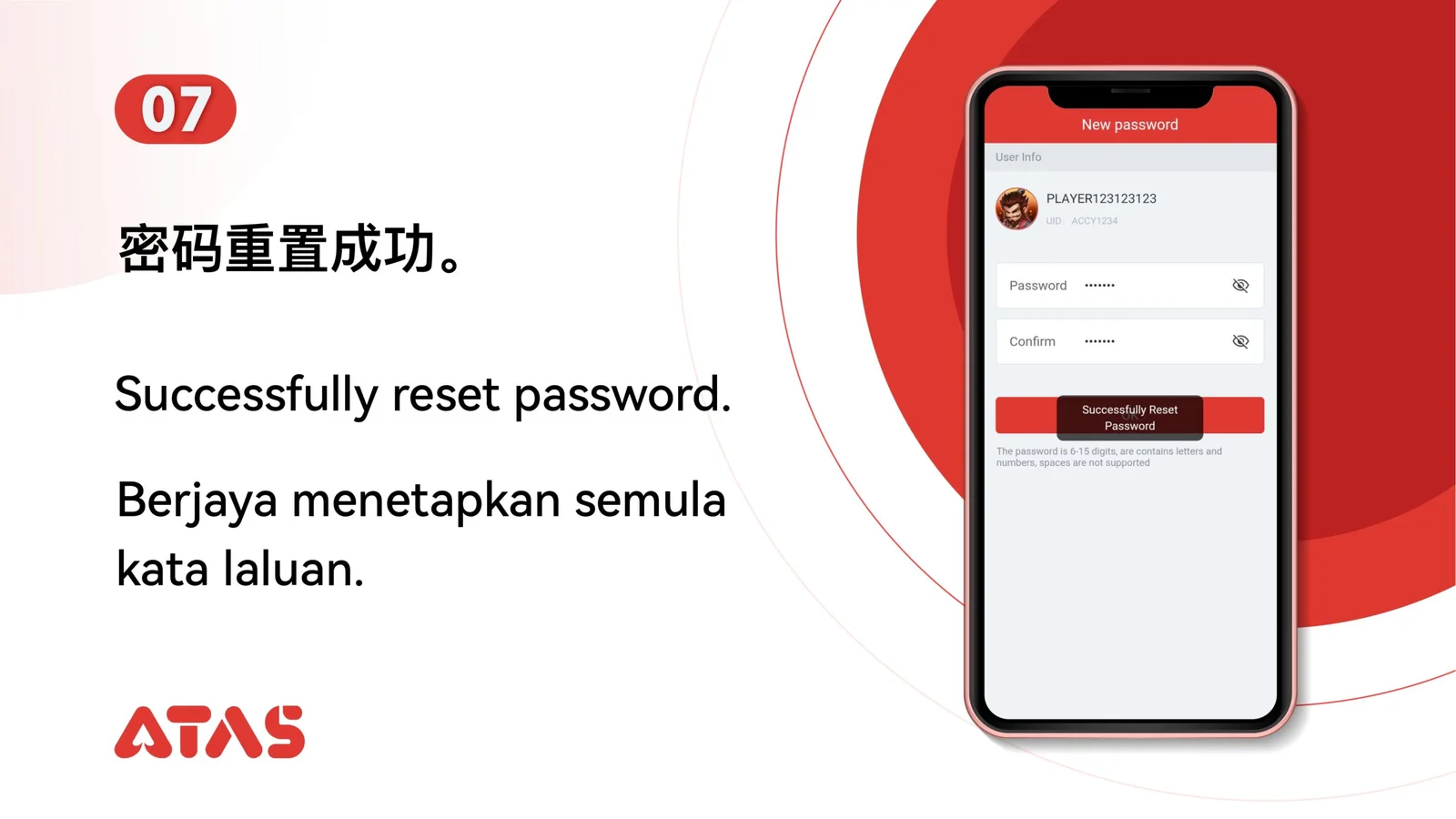
The new password is accepted and can be used on the official login page.
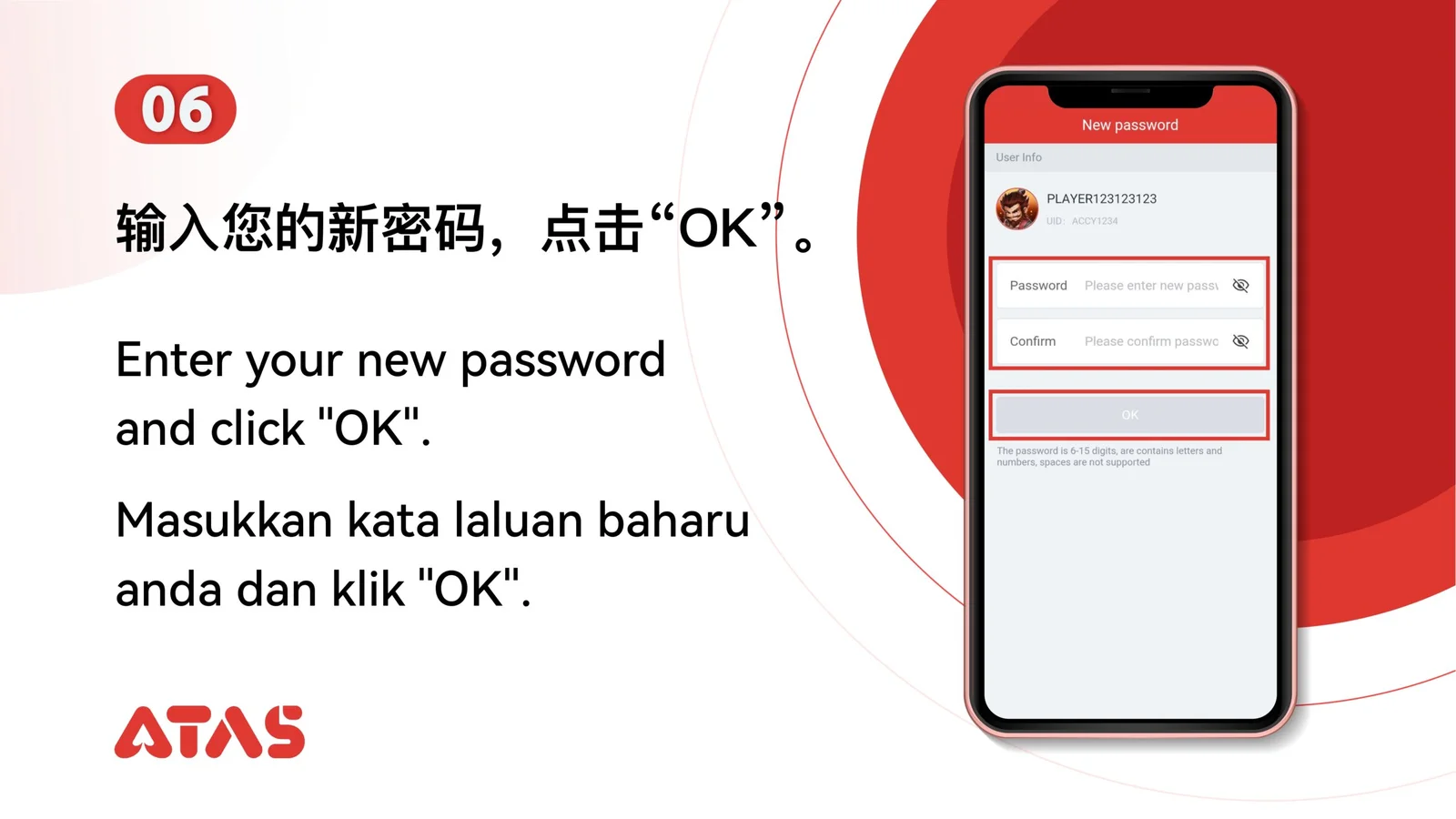
Repeated codes, expired OTPs or a password that breaks the displayed rules can fail.